 Brand Reputation
Every review answered — without the typing
Replying to every Google review, fast, is one of the strongest trust and ranking signals there is. HoneyBun writes the reply for you the moment a review lands. You read it, tweak it if you want, and tap Send. Businesses that answer reviews win more calls.
Open Reviews
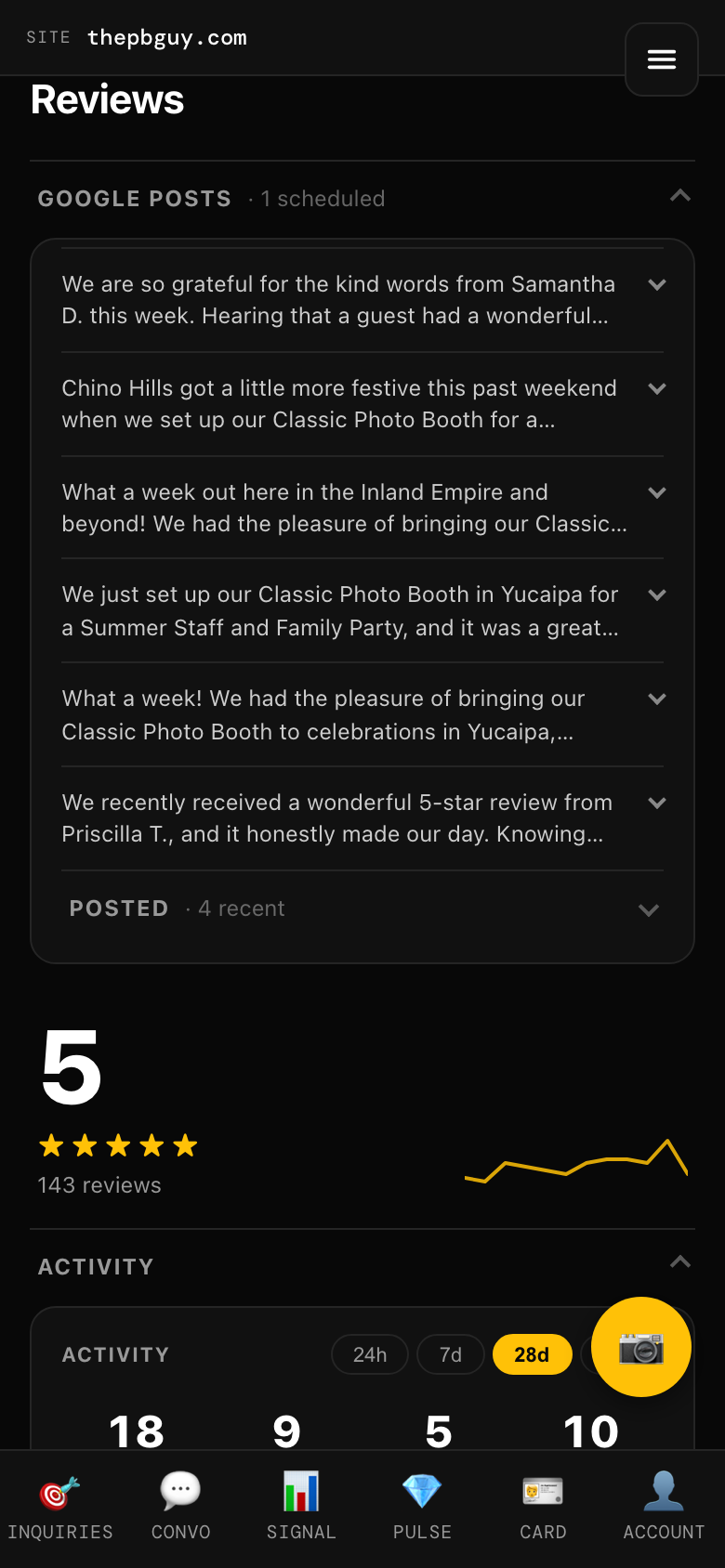
Tap ☰ → Reviews, or the Reviews card on your home screen. You’ll see your Google reputation at a glance: your star rating, total review count, and a 12-month trend line. It also lives inside Local Pulse as “Reputation.” (The gold 📷 button here starts a Job Check-in.)
Read the drafted reply, then tap Send
Every new review comes with a reply already written in your brand voice. Edit the text if you want, then tap the one gold Send button. It posts straight to Google — Google briefly shows it as “under review,” which is normal.
Turn on auto-reply to 5★
Flip the toggle at the bottom of the screen and every 5-star review gets a thank-you reply automatically. Those show a small “auto” chip in your Replied list, so you always know which ones you sent yourself.
Ask happy customers for reviews
Tap Request a review, pick a customer, and a review-link text goes out from your business number. More fresh reviews means a stronger rating and a better trend line. (If texting isn’t enabled yet, the app will tell you.)
Not connected yet? One tap fixes that
If the screen shows a single Connect Google Business Profile button, tap it and sign in with the Google account that owns your profile. That’s it — your reviews start flowing in.
Menu ☰ → Reviews