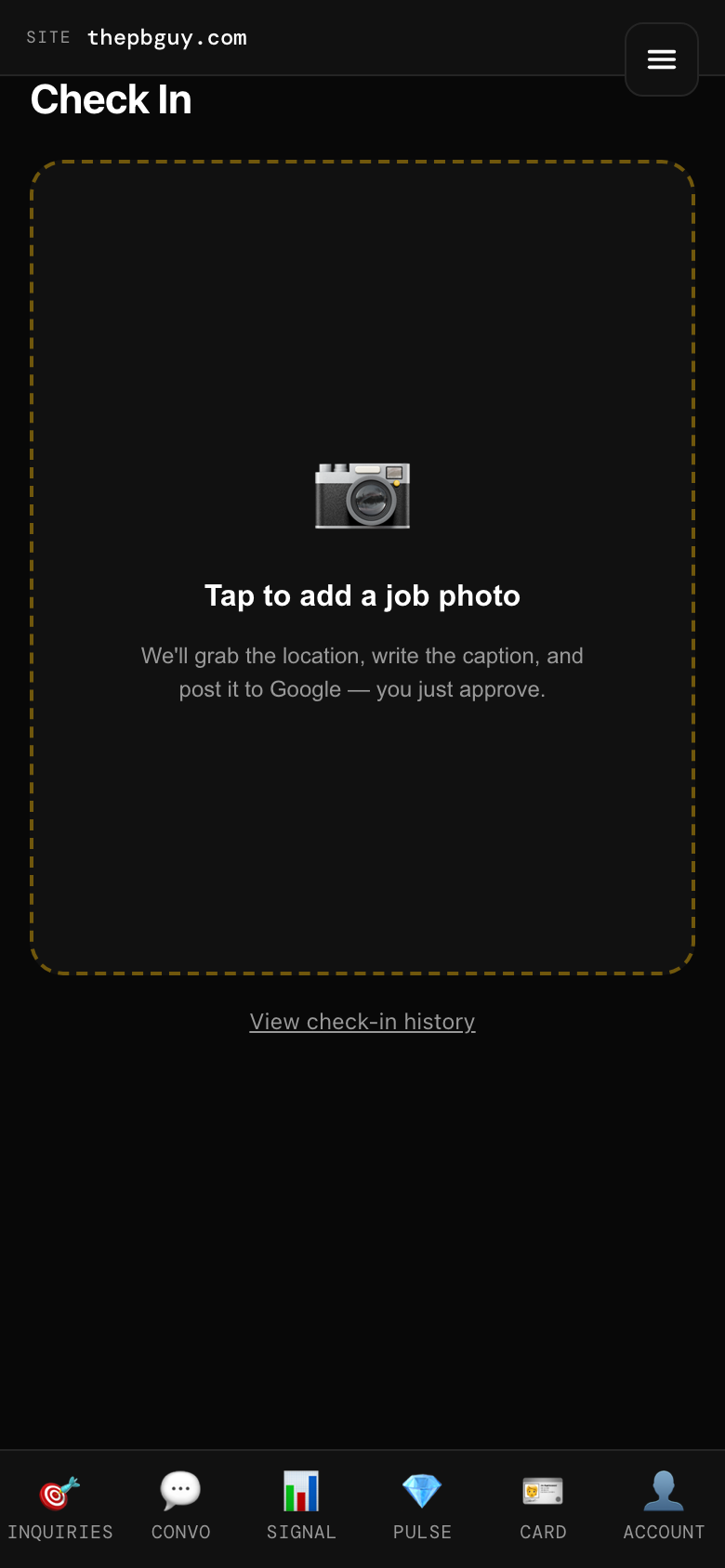
 Job Check-ins
Turn every job into proof on Google
Google ranks businesses that show recent, real activity in the cities they serve. A Job Check-in is two taps — pick a photo from the job, tap Check In — and the app does the rest. It's the highest-value 20 seconds after finishing a job.
Finish the job, take one good photo
The finished setup, on the job, well lit. That's it. No customer faces without permission. iPhone photos work fine — the app converts them.
Open Check In
Tap the gold 📷 button on the Reviews screen. You can also get there from Local Pulse → Check-ins, or go straight to operator.gethoneybun.com/#/checkin.
Pick the photo — everything fills itself
The app reads the location from the photo (or your phone — confirm it's the job site if asked), writes a caption in your brand voice, and picks tags from your services. Event type and venue are optional.
Read the caption, tap Check In
Tweak the caption if you want — it's yours before it goes out. Happy with it? Tap Check In. Done.
It posts to Google and your gallery
Your check-in lands on your Google Business Profile and your public check-in map — visible proof, on the map, that you do real jobs in the cities you serve. Tap View check-in history at the bottom to see past check-ins.
Reviews screen → gold 📷 button