 Shift Tracker
Your event day, one screen
Everything you need for a shift lives here — when to show up, what gear, where to go, and one button to check in at every stop. No app to download: it opens in your phone's browser. Save it to your home screen once and you're set.
Log in with your phone number
Open the link your team sent you, enter the mobile number your company has on file, and tap Send Code. Type the 6-digit code from the text — that's the whole login. No password to remember.
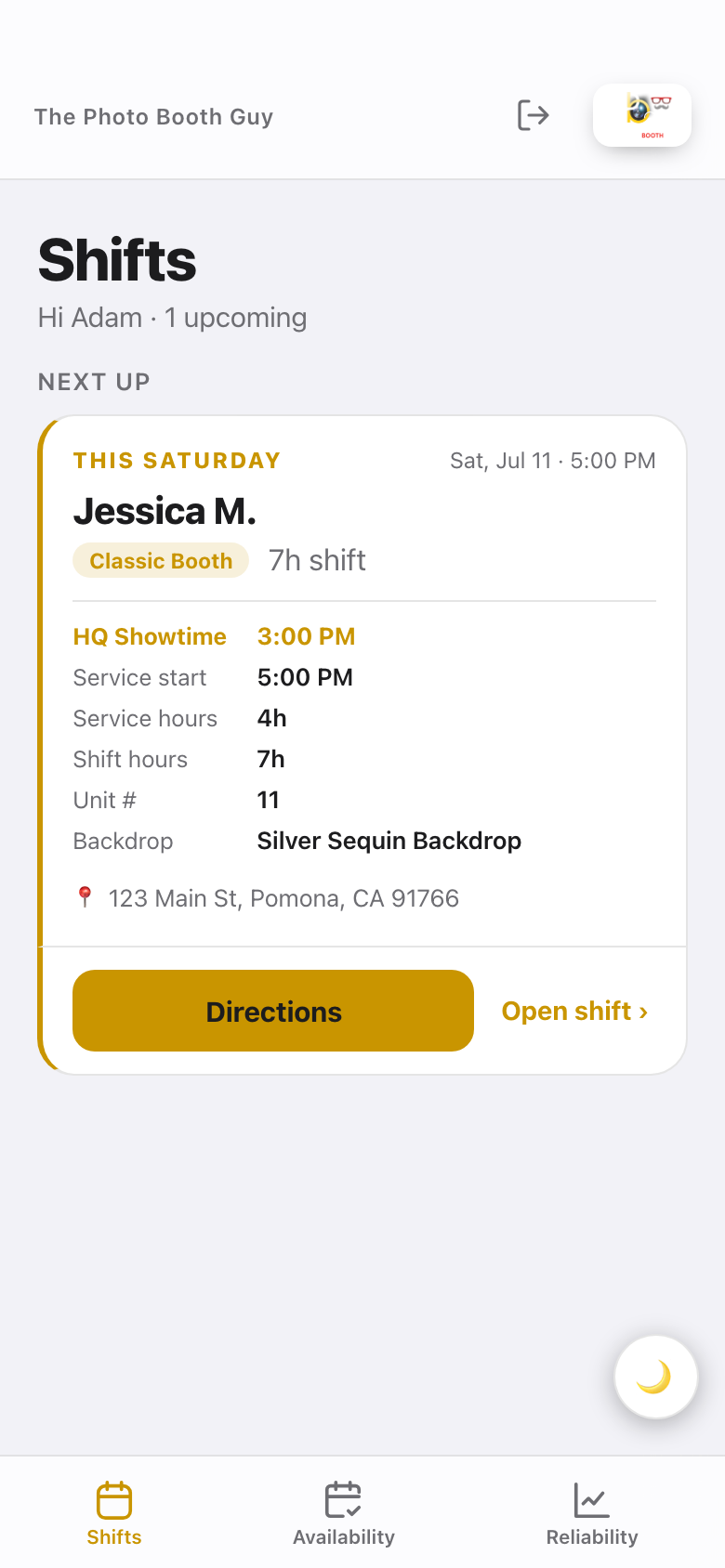
Check your Shifts list
Your next event sits at the top: date, start time, booth type, unit number, backdrop, and the venue address. Tap Directions for turn-by-turn, or Open shift for the full briefing — client name, guest count, indoor or outdoor, and any notes.
Confirm the shift when you're assigned
Open the shift and tap Confirm this shift so your team knows you've seen it. You'll get text reminders before the event — they link straight back to your shift.
Check in at each stop on event day
Keep the shift open through the day. The next stop glows gold with a Check in here button. With Auto check-in on, the app checks you in when you arrive — the button always works as backup. Check-ins go in order, one stop at a time.
Add your setup photos
Once service starts, upload a test shot and a setup photo — proof the booth looks right. After service ends, log any cash tip (card tips track automatically). Then tear down, drive back, and stamp the last stop to clock out.
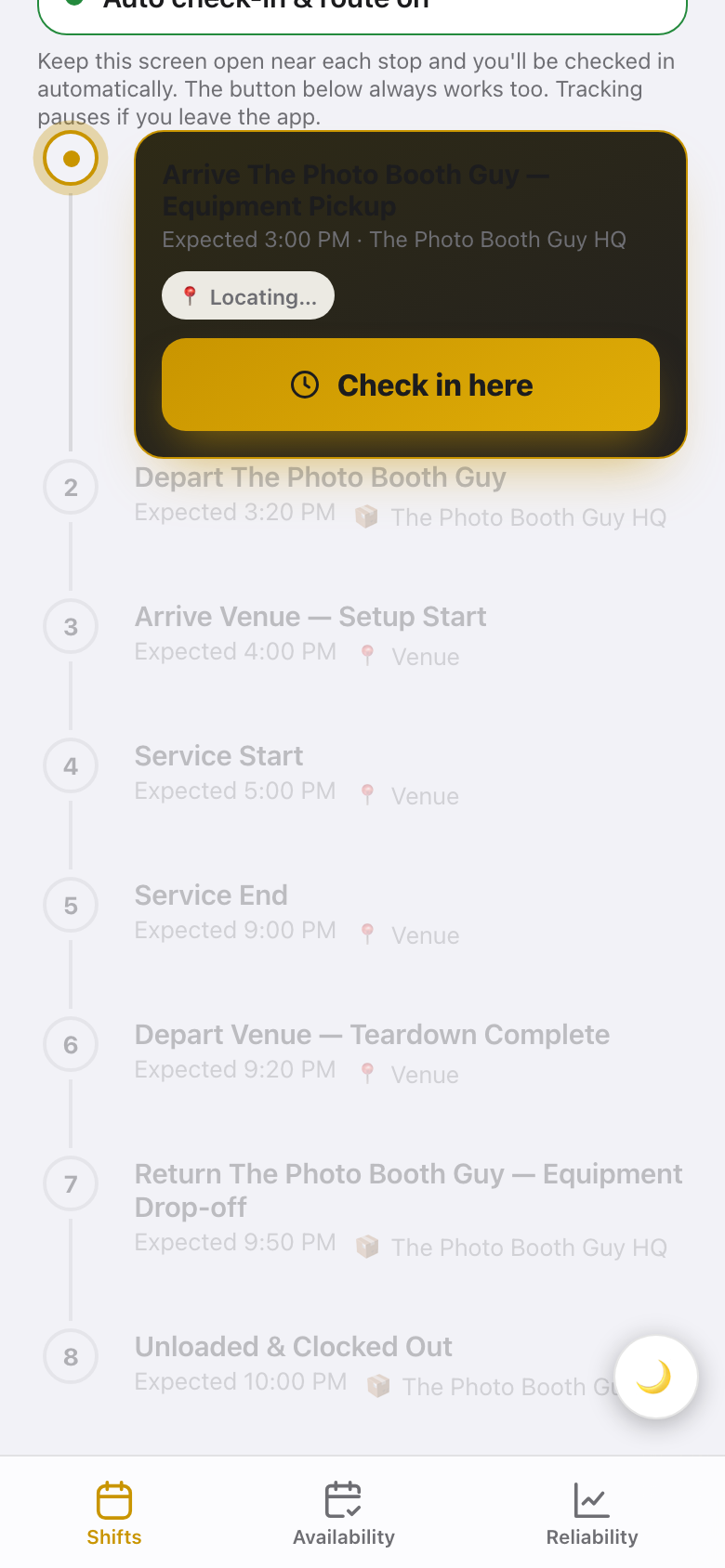
Each stop knows where you should be. Check in within the window and you're on time. Running late or checking in away from the site gets flagged — your lead may text to make sure you're okay.
Availability
Tap the Availability tab and set the days you can work, how many jobs you want per month, and any dates you're off. Update it when life changes — it's how you get booked for shifts you actually want.
Reliability
The Reliability tab shows your on-time percentage over the last 90 days — events worked, check-ins made, and anything flagged. On-time check-ins keep it climbing.
Use the link your team sent you, then Share → Add to Home Screen