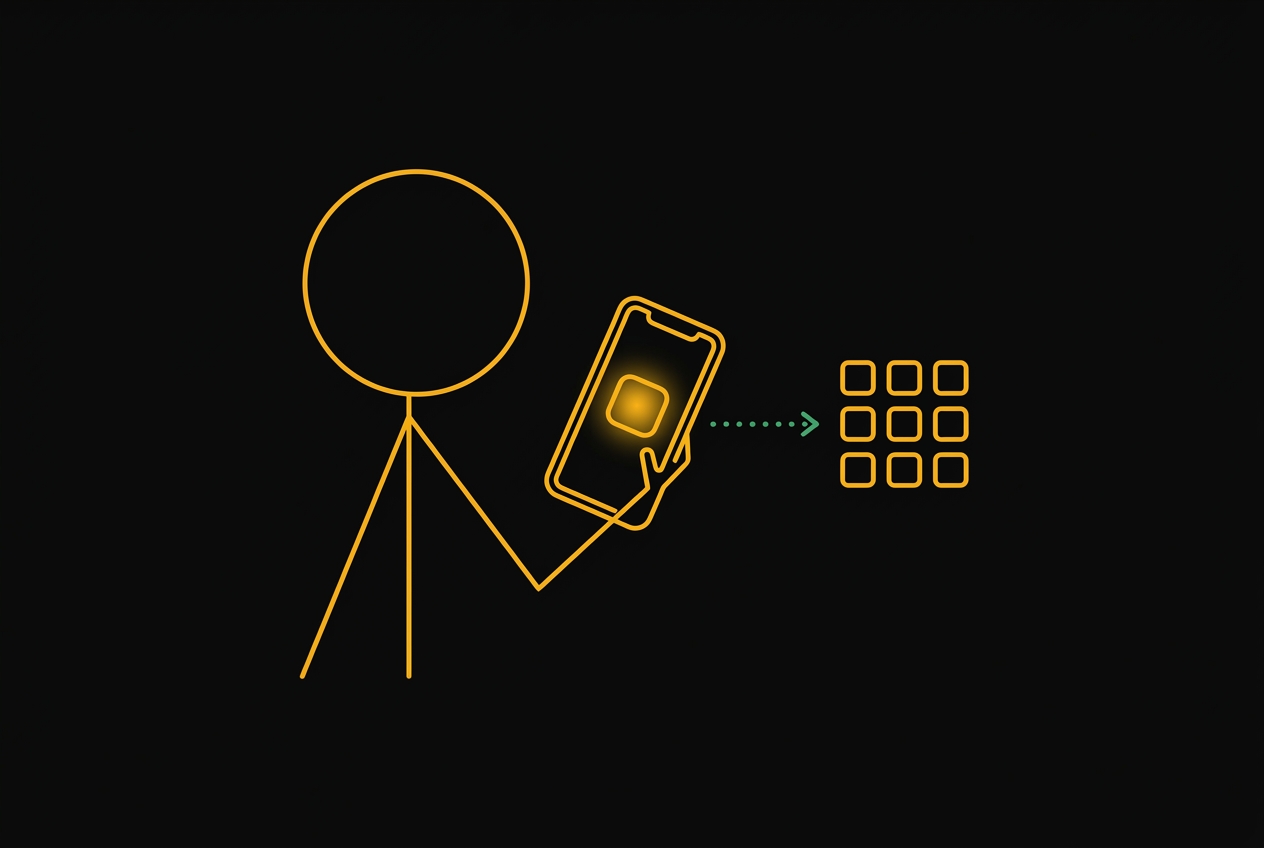
 Step 1 of 5
Respond to leads in seconds — from anywhere
The operators who respond first win the deal. With HoneyBun on your phone, you'll see every lead the moment it comes in and respond before your competitor even opens their email.
Takes 30 seconds
1
Open the link on your phone
Go to operator.gethoneybun.com in your phone's browser. iPhone must use Safari. Android uses Chrome.
2
Tap "Add to Home Screen"
iPhone: Tap the Share button (square with arrow), scroll down, tap "Add to Home Screen".
Android: Tap the three-dot menu, tap "Install app" or "Add to Home screen".
3
Sign in with your email
Open the app from your home screen. Enter the email you used at checkout. You'll get a one-time code — enter it and you're in.
iPhone (Safari only)
- Open Safari (must be Safari)
- Go to operator.gethoneybun.com
- Tap the Share button
- Tap "Add to Home Screen"
- Tap "Add"
Android (Chrome)
- Open Chrome
- Go to operator.gethoneybun.com
- Tap the three-dot menu
- Tap "Install app"
- Tap "Install"
operator.gethoneybun.com
Open this link on your phone right now