 Step 3 of 5
Keep your site accurate — so leads trust you instantly
Outdated services, old photos, or a wrong phone number costs you leads. Update anything from your phone in 30 seconds — no developer, no waiting. Your site always reflects exactly what you offer today.
Tap the ➕ button, then Edit Site
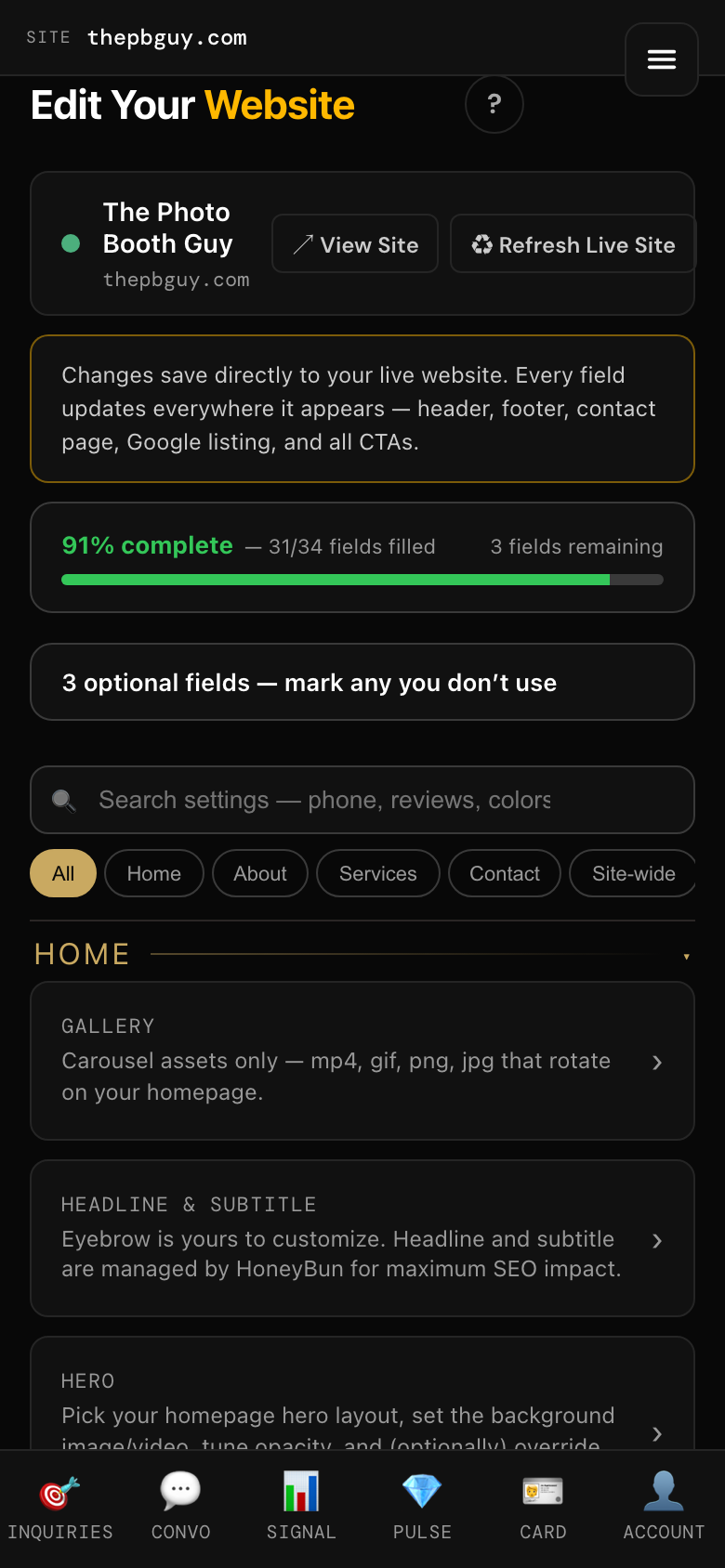
The ➕ button sits at the bottom of the home screen (or use the ☰ menu → Edit Site). This opens everything on your live website that you can edit. The tabs across the top — Home, About, Services, Contact, Site-wide — group it by page, and the search box finds any setting by name. The completion meter shows how close you are to 100% — the more fields you complete, the better the copy our content engine writes for you.
Make sure customers see what you actually offer
If a service is listed that you don't do anymore, you'll get leads you can't close. If a service is missing, you're leaving money on the table. Remove what's gone. Add what's new.
More photos + reviews = more leads
Businesses with fresh photos and real reviews get 2-3x more inquiries. Upload your best recent work and add testimonials from happy customers — this is the single fastest way to increase conversions. When you add a photo, we ask for a quick description and automatically write the SEO alt text for you (with your city added).
Verify your contact info
Phone number, email, address, booking link — make sure a customer can reach you from every page on your site.
Fine-tune a single page (swap the zig-zag photos)
To edit one specific page, open the Pages tab, expand Services, tap a service to reveal its individual pages, then tap Details › on the one you want. Here you can rewrite the page’s headings and copy, and swap the photos in the alternating zig-zag section — tap Swap Image / Video on any panel to use your own picture, then tap Save zig-zag.
Don’t want your photo there? Let the site pick one
Use automatic image removes your photo from that one panel and lets the site fill it with a picture for you. Your heading and words stay the same — only the photo changes. (Tap Save zig-zag after.) To clear everything on the section and start fresh, tap Reset to automatic.
What you can edit
Tap ➕ → Edit Site → review your services